

The Interface
Ship of Tools is three columns: navigation, preview and agent. The bottom drawer, when open, sits under the navigation and preview columns; the agent column always runs the full height. The columns are fixed in role; the drawer swaps between four contents. Every pane is keyboard-driven and every chord is rebindable; see Keybindings. On macOS, Ctrl in the chords below is ⌘ (Primary).
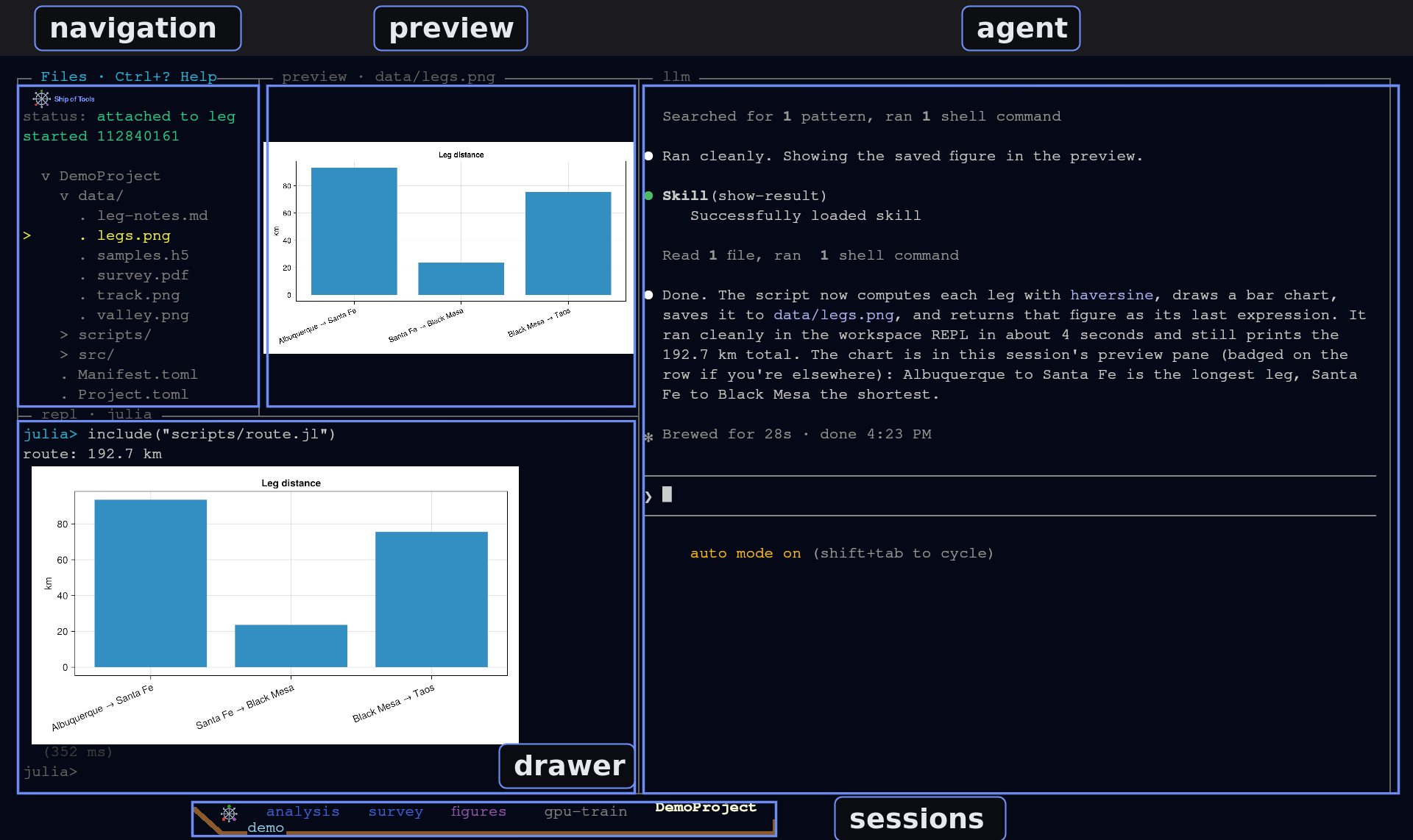
Ctrl+J, Ctrl+T, Ctrl+M and F1 swap the REPL, Terminal, Monitor and Help into the drawer. Column order, widths and the drawer height come from the layout preset; the portrait preset drops the agent column.
This page walks each pane in turn — what it is, what fills it, and the keys that drive it — and links out to the guide behind it. For a first-session walkthrough, see Your first session.
The panes
| Pane | Position | What it is | Deep dive |
|---|---|---|---|
| Navigation | left column | the mode tree — a collapsible outline whose root you switch with a hotkey | Modes |
| Preview | middle column | the selected entry, rendered | Previews |
| Agent | right column | the session's agent (Claude Code, Codex or a plain shell) | Running several agents |
| REPL | bottom drawer | the persistent Julia session, figures inline | The REPL |
The bottom drawer
The bottom drawer is shared by the REPL, the Terminal, the Monitor and Help, each with its own global toggle. Pressing a second toggle swaps the content in place rather than stacking:
| Drawer | Toggle | What it is |
|---|---|---|
| REPL | Ctrl+J | persistent Julia session; values, stdout, and figures stream back as structured frames |
| Terminal | Ctrl+T | a local OS shell on the frontend machine — canonical use is SSHing out to backend hosts |
| Monitor | Ctrl+M | CPU / GPU / RAM history across your configured hosts |
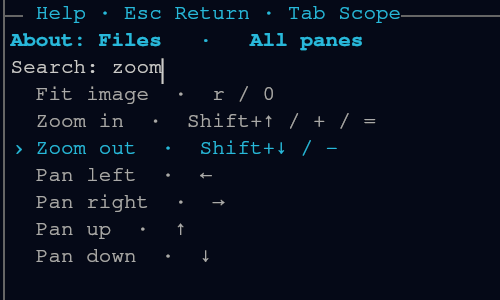
| Help | F1, or Ctrl+? twice | the focused pane's actions and their bindings, searchable |
Drawer toggles are global — they fire even when another pane holds focus.
Help drawer
F1 opens the Help drawer for the pane you were using. Type to search, use arrows to select an action, Tab to browse all panes, and Enter to open its manual. Escape restores the previous drawer and focus. The Help view preserves its source context while you read; switching away leaves Julia and terminal processes running.
Focus and layout
| Action | Key |
|---|---|
| Move focus between the panes on screen (spatial; hidden panes are skipped) | Ctrl+Arrow |
| Navigate within the focused pane | plain Arrow |
| Maximize the focused pane | Alt+= |
| Wide-preview: hide the LLM column, hand its width to the preview | Alt++ |
| Restore the layout, one layer per press (un-maximize, then exit wide-preview) | Esc (only while maximized or in wide-preview) |
| Switch to the next / previous session | Shift+Right / Shift+Left |
| Temporary pane actions / promote to Help drawer | Ctrl+? / press again |
| Open Help directly | F1 |
Plain arrows, Ctrl+Arrow, and Shift+Left / Shift+Right are scoped so they do not conflict: Shift+Right / Shift+Left switch sessions, except in a text editor, where they extend the selection, and in an image preview, where Shift+Up and Shift+Down zoom. The authoritative, build-current chord list is in Keybindings; when in doubt, Ctrl+? (or F1) is the source of truth.
The Navigation Pane
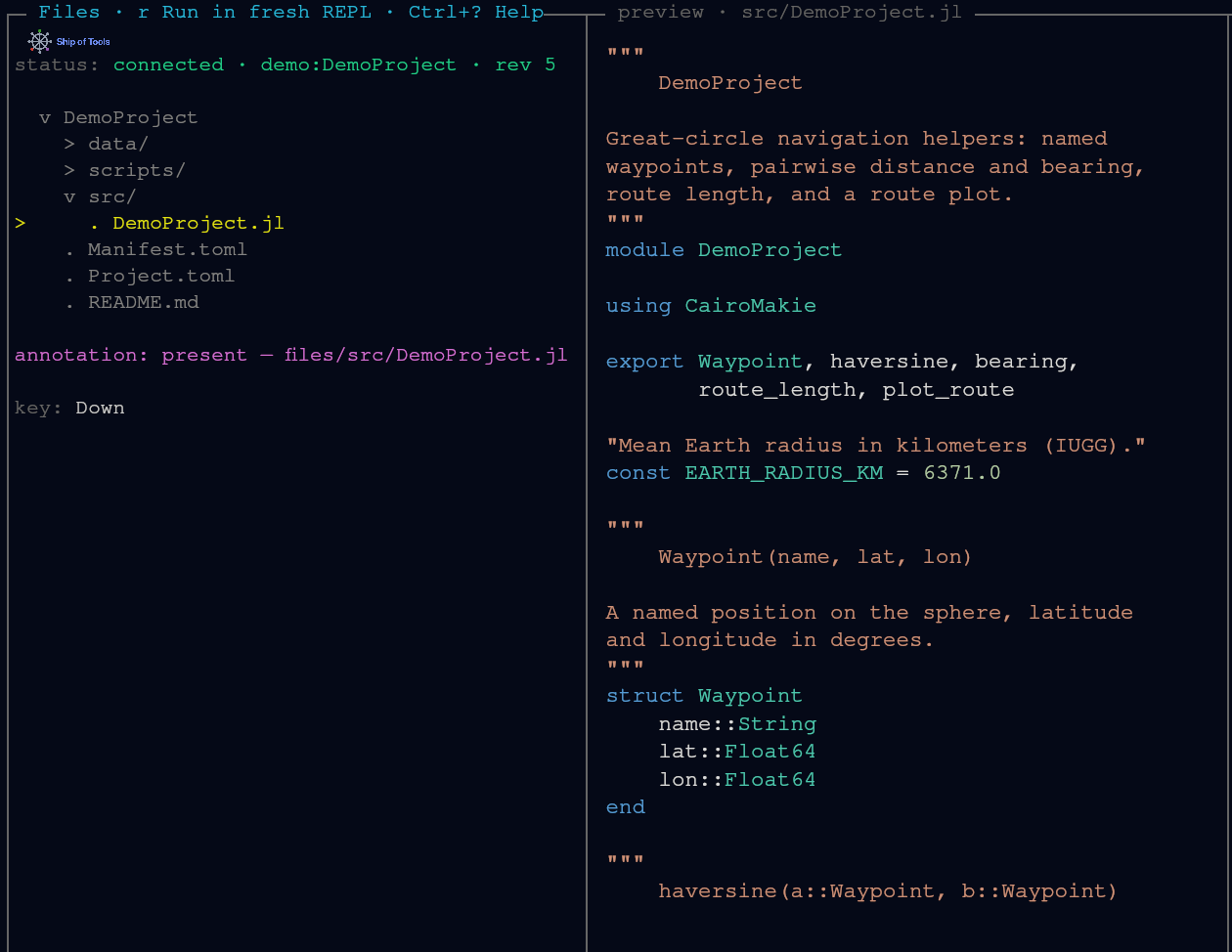
Left column. The navigation pane is the mode tree — a single collapsible outline (a parent context, the current level, and its children, shown through indentation and disclosure carets) that you walk with the arrow keys. It is the pane you steer from; the Preview pane reflects whatever node the cursor is on.
What fills it
A mode is a switchable root for this tree. A hotkey swaps which tree fills the columns, and cursor position is preserved per mode, so jumping between modes and back lands you where you left each one. The modes bound today are f Files, m Modules, s Sessions and h Hosts; the Modes page describes each and what is planned.
The mode keys are plain single characters, so they are scoped to navigation focus: typing f into the REPL or a prompt inserts an f, it does not switch modes.
Driving it
| Action | Key |
|---|---|
| Move up/down the tree | ↑ / ↓ |
| Descend into the cursored node | → |
| Back up a level | ← |
| Switch nav mode | f / m / s / h |
| Focus this pane from elsewhere | Ctrl+Arrow (spatial) |
| Copy the cursored file's path to the clipboard | c |
The lines around the tree
status:above the tree usually readsconnected · <host>:<workspace> · rev N: the connection, the active workspace, and the last revision of backend state the window has received. An action such as a pin replaces it with a short message (pinned · <path>), and so does the agent pane when it attaches to a session's running program (attached to leg started …).annotation:below the tree is the concept annotation status of the cursored entry:present,(none)when no annotation file exists for it,loading, or(no target for this row)for rows such as sessions that cannot carry one.key:shows the last key the window received, which helps when a binding does not do what you expect.In Sessions mode, a tag in brackets after a session's name is the phase of its supervised process, for example
[starting],[ready],[ending],[stopped](no process has run for it yet),[terminal](it ended and will not restart), or[unreachable](the backend could not query it). The row is colored by the agent's work state and ends with the reason the agent last reported.The bottom border of the window shows the frontend (
fe) and backend (be) versions.
The Preview Pane
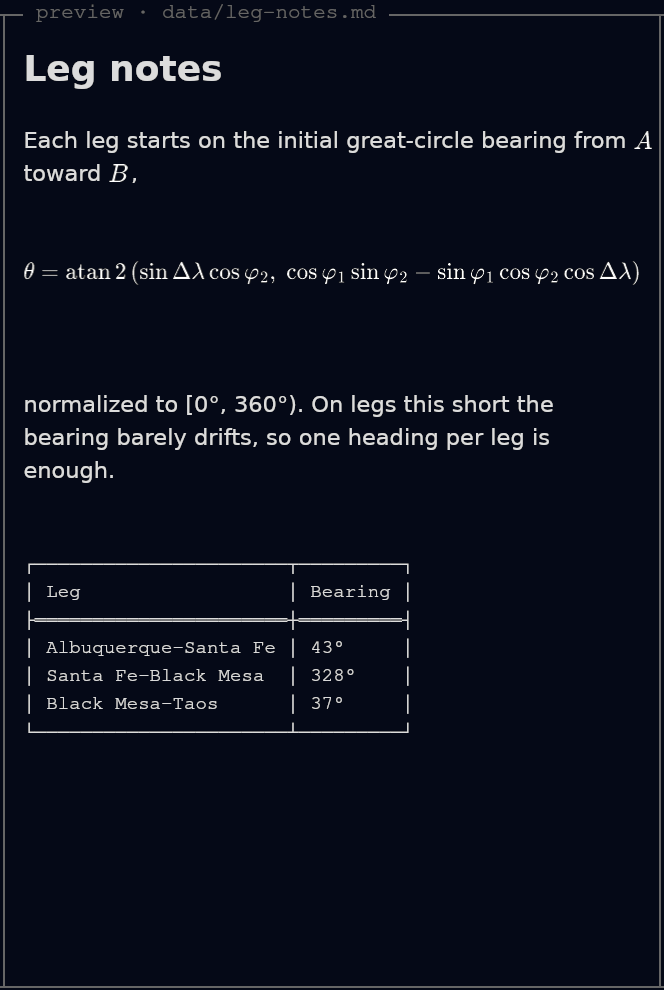
Middle column. The preview pane renders whatever the Navigation pane cursor is on, at the fidelity appropriate to its type — markdown rendered, PNGs shown, .jl syntax-highlighted, PDFs paged, video as a poster frame.
What fills it
The backend first asks the Julia kernel: a FileType plugin claims the path with matches and returns a PreviewPayload from preview. When no plugin claims it, the backend reads the file itself; that is how raster images and plain text are served. The payload's mime tells the frontend which renderer to use; the bytes are opaque to Rust, so adding a format needs no Rust change when the plugin returns a MIME the window already renders. A sampling of the built-ins:
| Kind | Rendered as |
|---|---|
.jl | syntax-highlighted source (tokenized kernel-side, no client re-parsing) |
.md | rendered markdown, including inline math |
.json / .toml / .txt | plain text (JSON/TOML pretty-print / color planned) |
.pdf | one rasterized page; with the preview focused (Ctrl+Right) n / p turn pages |
video (.mp4, .webm, …) | a poster frame; o opens playback in the browser |
The full table — every built-in type and its MIME — is on the Previews page.
Beyond static rendering
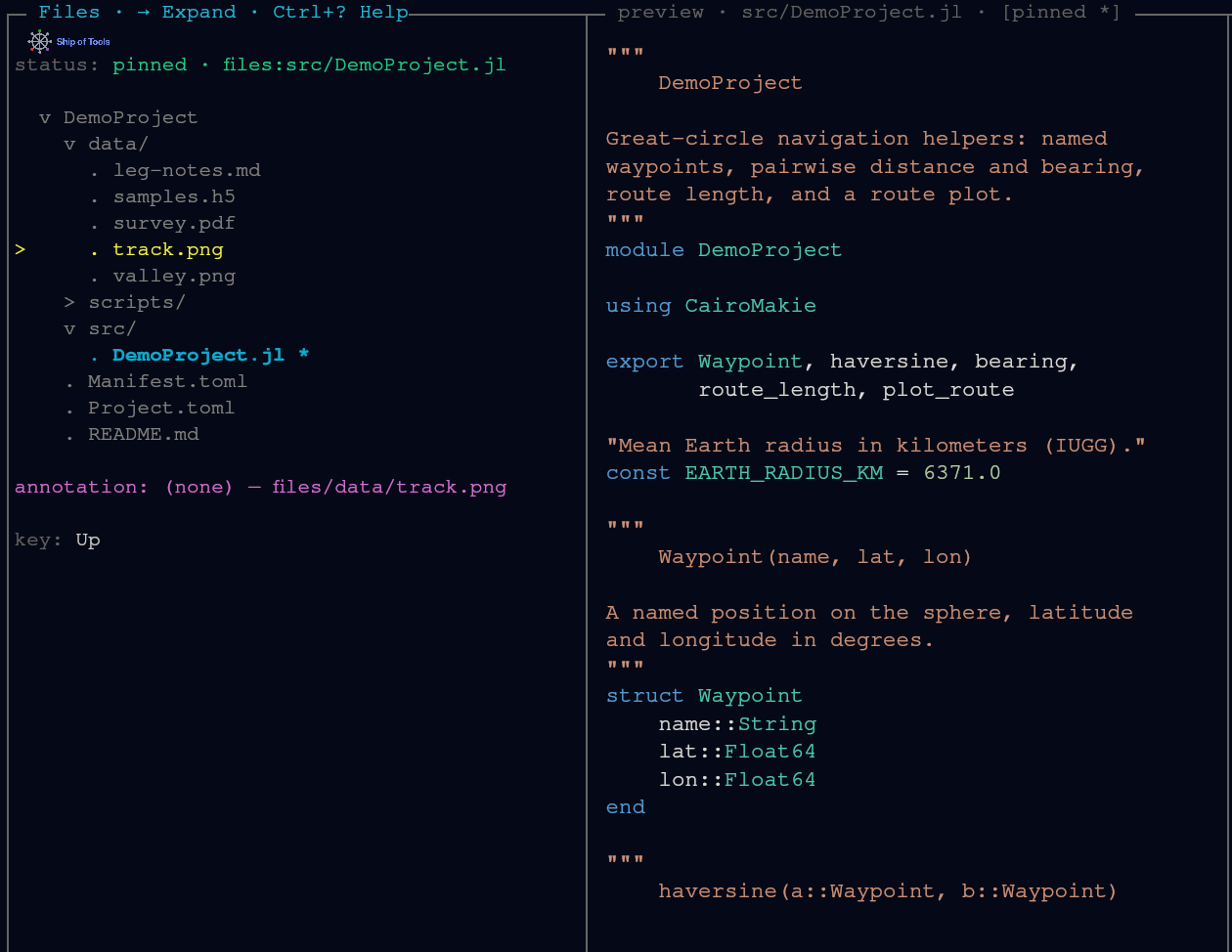
- Pin a file.
pkeeps a file in the preview pane while you browse elsewhere in the tree;pagain unpins it and the cursor returns to it. A pinned preview still updates as the file changes on disk.
Opens in the browser, not the pane. Interactive HTML, Pluto notebooks, and Quarto documents pop out to the OS browser through the backend connection, local or remote, rather than rendering in-pane; the source still previews as text. Same policy as video.
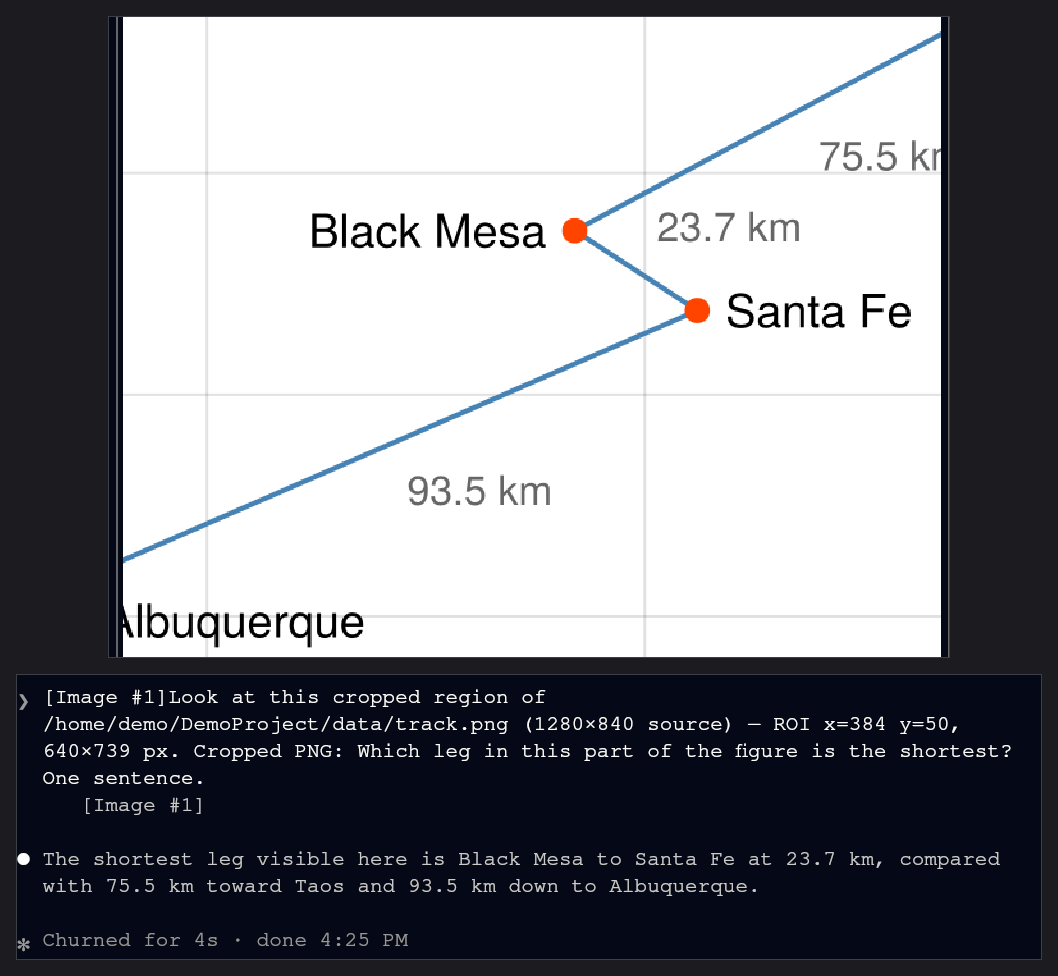
Capture a region for the LLM. On a raster image you can crop a zoomed region and hand it straight to the agent — "what's the artifact here?". The crop is taken from the source image on the backend, so the agent sees exactly what you do.
No silent blanks. When an external tool is missing (ffmpeg, poppler), the plugin returns a
text/markdownnote explaining the gap instead of an empty pane.
The Agent Pane
Right column. The agent pane holds the session's agent: Claude Code, Codex or a plain shell. Its title bar reads llm. You describe what you want; the agent reads code, writes code, and runs code in the REPL to get there. See Agent sessions.
What fills it
A session belongs to a workspace on the backend daemon, so it sits alongside project state. It survives a window relaunch and a dropped connection; closing the last window on a computer ends that computer's sessions unless you keep them (see Sessions and persistence).
Several sessions run concurrently, coordinated over the inter-agent communication system. You start and switch them from Sessions mode (s); cycle the active workspace with Shift+Right / Shift+Left. A dedicated in-UI Agents mode is not built.
How it acts
Its own tools, plus a few skills. The agent brings its own tools and context management. The installer adds skills that let it run code in the workspace REPL (
sot-fe repl), show a file in your preview pane (show-result) and message other sessions, and hooks that report its work state. See How agents use the REPL.Permissions come from the agent CLI. Ship of Tools adds no permission layer of its own. See Agent sessions.
Hand it a file, or a crop of an image
In Files mode, c copies the selected file's path to the clipboard for pasting into the agent's prompt.
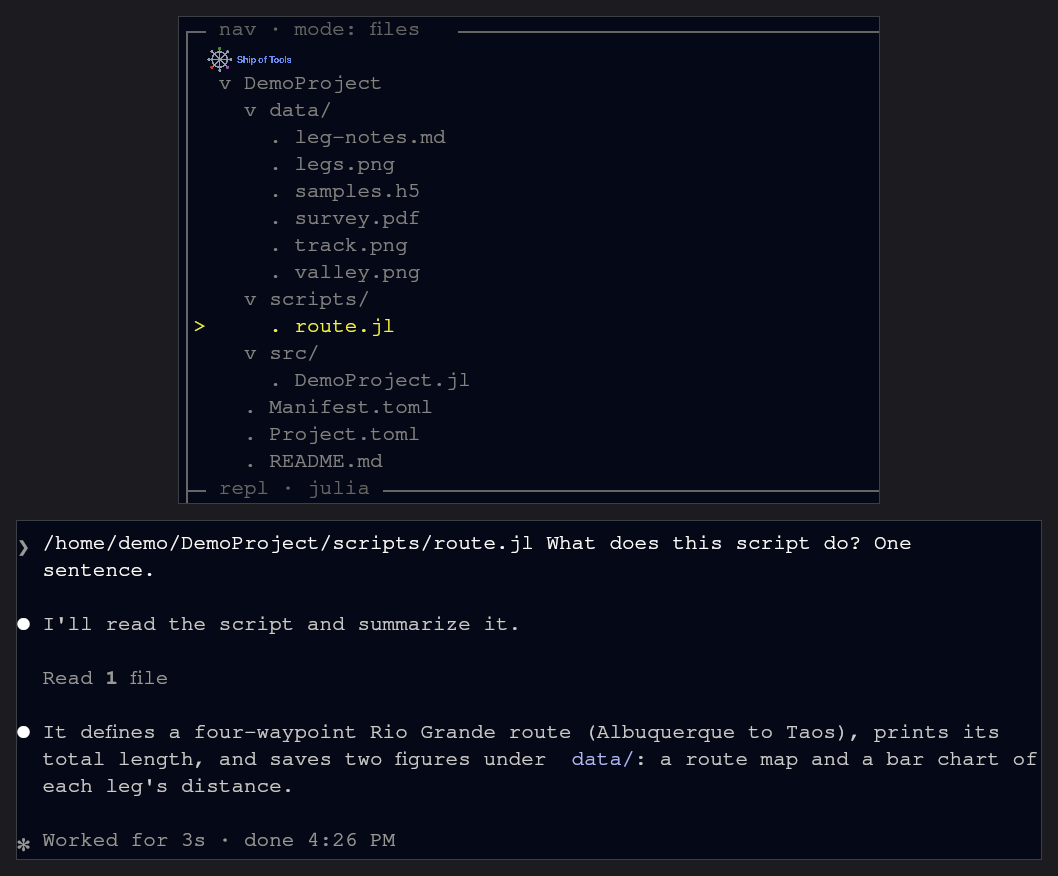
With the preview focused (Ctrl+Right), c on a zoomed image crops the visible region instead and drops a ready-to-send line into the agent pane's input, naming the source file, the region, and the crop saved under .sot/captures/.
The REPL Pane
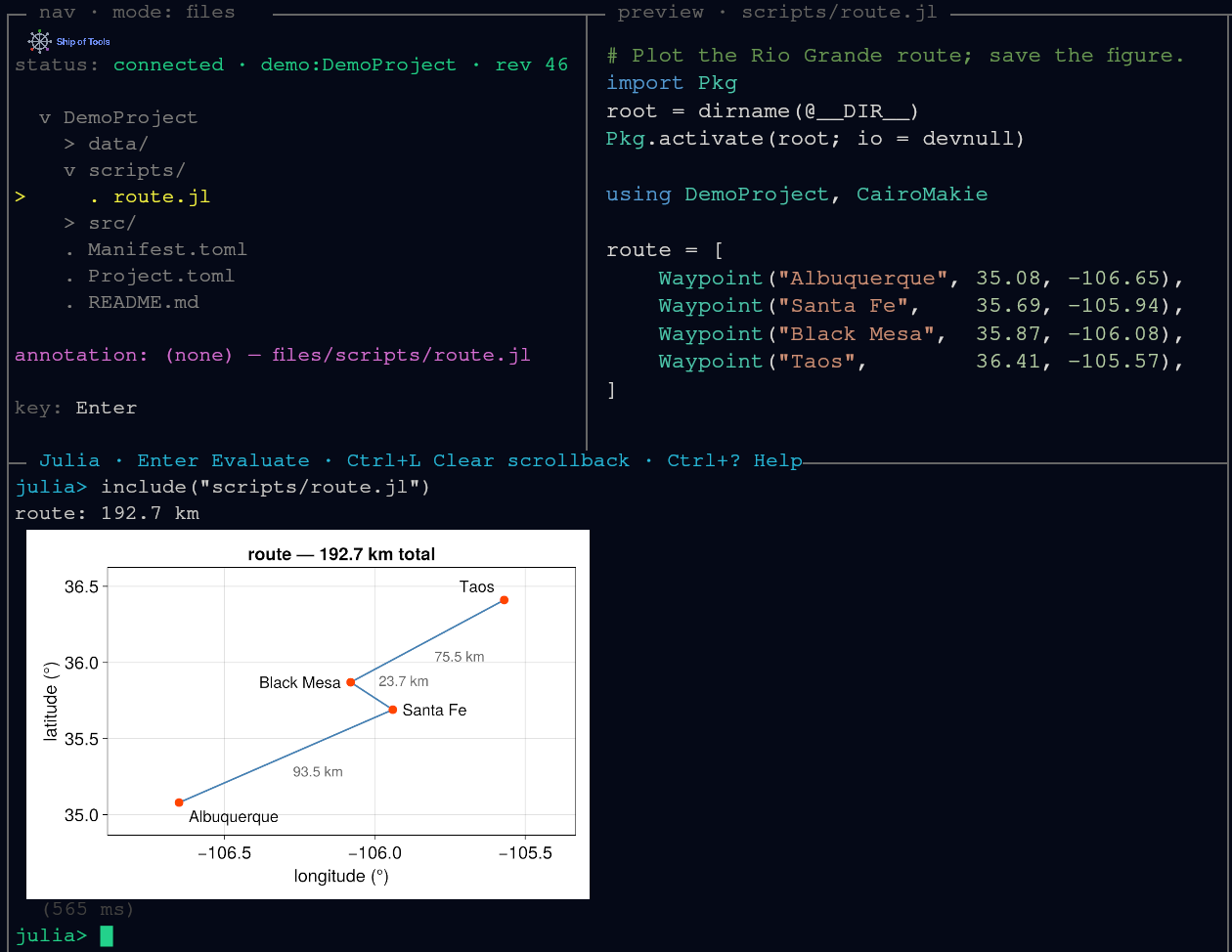
Bottom drawer — Ctrl+J. The REPL pane is a persistent Julia session available throughout a session: the same bindings, the same loaded packages — but its output is structured, and the figures it produces render inline in the native window rather than as terminal text. It shares the bottom drawer slot with the Terminal and Monitor.
This page covers the pane itself — what fills it, its keys, how to drive it. For the frame schema, dispatch semantics, and figure-rendering mechanics in depth, see The REPL.
What fills it
A Julia process supervised by the backend daemon, separate from the kernel that does project introspection, so restarting your interactive session never costs you the project view. See A supervised, separate process.
Every drawer on a row shows every run on it: what you type, a run another window started (labeled ⟨window ▸ …⟩) and a session's run (labeled ⟨session ▸ …⟩). On a Linux backend the REPL has a display of its own, so GLMakie works; see The REPL.
Driving it
Two ways to drive it, without retyping:
Run a
.jlfile from Files mode —Shift+Rincludes it into the current session;rfirst restarts the REPL in the session's project (the session root when it has aProject.toml, else the nearest one above the file), then runs it.Type at the prompt —
Entersubmits,Shift+Enterinserts a newline.
Per-line and per-block dispatch (the line at the cursor, or the surrounding top-level form) are planned, not yet built.
A long-running evaluation runs on its own task, so you can interrupt it mid-eval whenever it yields (sleep, I/O that waits, yield()) — a real InterruptException, the same as Ctrl-C in the stock REPL. One that never yields but allocates or calls (a sin loop) is stopped by the one interrupt signal the daemon sends, as in the stock REPL; code with no safepoint (an integer loop) ignores it, and a second Ctrl+C forces it, which can crash or hang the REPL inside C code, compiling or garbage collection, and under heavy CPU load may not stop it (r on a .jl file restarts the REPL and ends it). Ctrl+C stops the running evaluation if it is one the drawer shows as running; see The REPL.
Structured output
The display shim emits typed frames, so the frontend renders each correctly: stdout/stderr stream as bytes arrive, errors carry a structured stacktrace with file:line links, and a showable value (a CairoMakie Figure, a Plots.Plot, anything with show(io, MIME"image/png")) becomes an image frame drawn inline through the preview layer. The frame kinds are listed in The REPL.
The Terminal Drawer
Bottom drawer — Ctrl+T. The Terminal is a local OS shell on the frontend machine. Its canonical use is SSHing outward to backend hosts, and because it is local — not proxied through the daemon — it works even when the backend is unreachable. It shares the bottom drawer slot with the REPL (Ctrl+J) and the Monitor (Ctrl+M): each key toggles its own content, and pressing another swaps it in place.
Ctrl+T opens the Terminal drawer, a shell on this computer in the window's working directory.
| Key | Drawer closed | Showing this content | Showing other content |
|---|---|---|---|
Ctrl+T | → Terminal | → closed | → Terminal |
Ctrl+J | → REPL | → closed | → REPL |
Scrollback
Plain PgUp/PgDn page the drawer's scrollback ring (a one-third-pane step, the same convention as the LLM pane) — so a claude session running here scrolls exactly like one in the LLM pane. Typing snaps back to the live tail. Two escape hatches keep full-screen apps working:
Apps on the alternate screen (
vim,less) page themselves — they receive the raw key automatically.Shift+PgUp/Shift+PgDnforwards a plainPgUp/PgDnto a primary-screen app that wants the key itself.
The mouse wheel scrolls the same ring, or is forwarded as SGR mouse events when the running app has enabled mouse tracking (vim, htop).
The Monitor Drawer
Bottom drawer — Ctrl+M. The Monitor shows CPU / GPU / RAM history across all your hosts at once — small-multiples, one compact panel per host (a multi-GPU box shows each GPU as its own trace). It shares the bottom drawer slot with the REPL (Ctrl+J) and the Terminal (Ctrl+T); the toggle is global, so it opens even when another pane has focus.
How it gets the data
The declared hub is the aggregator: it alone runs the [monitor] roster, and the drawer subscribes to the hub regardless of which host you're navigating — "see all servers at once" is solved at the data layer, on the one daemon that's the monitoring authority. For each host in the roster the hub runs a small sampler:
its own host locally, on Linux only (a macOS or Windows daemon does not sample its own host); remote hosts as
ssh <alias> bash -s, with the script fed over stdin — zero footprint, no daemon, nothing written to the remote's disk.CPU% from
/proc/stat, RAM% from/proc/meminfo, GPU fromnvidia-smi. All world-readable, so no sudo and no privileges are needed.
A daemon that is not the hub samples only the host it runs on (on Linux) — it never ssh's anywhere, so a wrong or unreachable alias on some other box can't wedge it. Dialling a non-hub daemon directly shows that daemon's own single panel, not the fleet; to see the fleet, dial the hub.
Sampling is always on for the life of the daemon, so the drawer shows real history the moment it opens rather than starting from a blank axis; what monitor.subscribe gates is per-connection delivery of ticks, not collection. The hub keeps an in-memory tiered ring buffer per host, so the time axis can rescale to wider windows without a round-trip. Restarting the hub restarts that history.
Which hosts appear comes from the [monitor] section of ~/.config/sot/hosts.toml (or the file $SOT_HOSTS names); see Configuration Files. With no [monitor] section, or on a non-hub daemon, only that daemon's own host is sampled (on Linux); the [host.*] entries are frontend connection targets and are not monitored implicitly.
The list binds when the daemon starts. Editing hosts.toml while the hub is running changes nothing until it restarts — there is no reload and no file watch. If the drawer is missing a host you just added, restart the hub.
How the traces are drawn
Traces are drawn as real SVG, rasterized through the same resvg → wgpu-quad pipeline that renders typeset math. A host whose SSH or sampler dies renders an explicit gap.