

Your first session
A first-session walkthrough: the window, the agent, the modes and the drawers, and the keys you use most. The keys below are the built-in defaults; see Keybindings for how to rebind them.
If Ship of Tools is not installed yet, start with the Quickstart.
The window
The window has three columns. When the bottom drawer is open it sits under the navigation and preview columns; the agent column always runs the full height of the window.
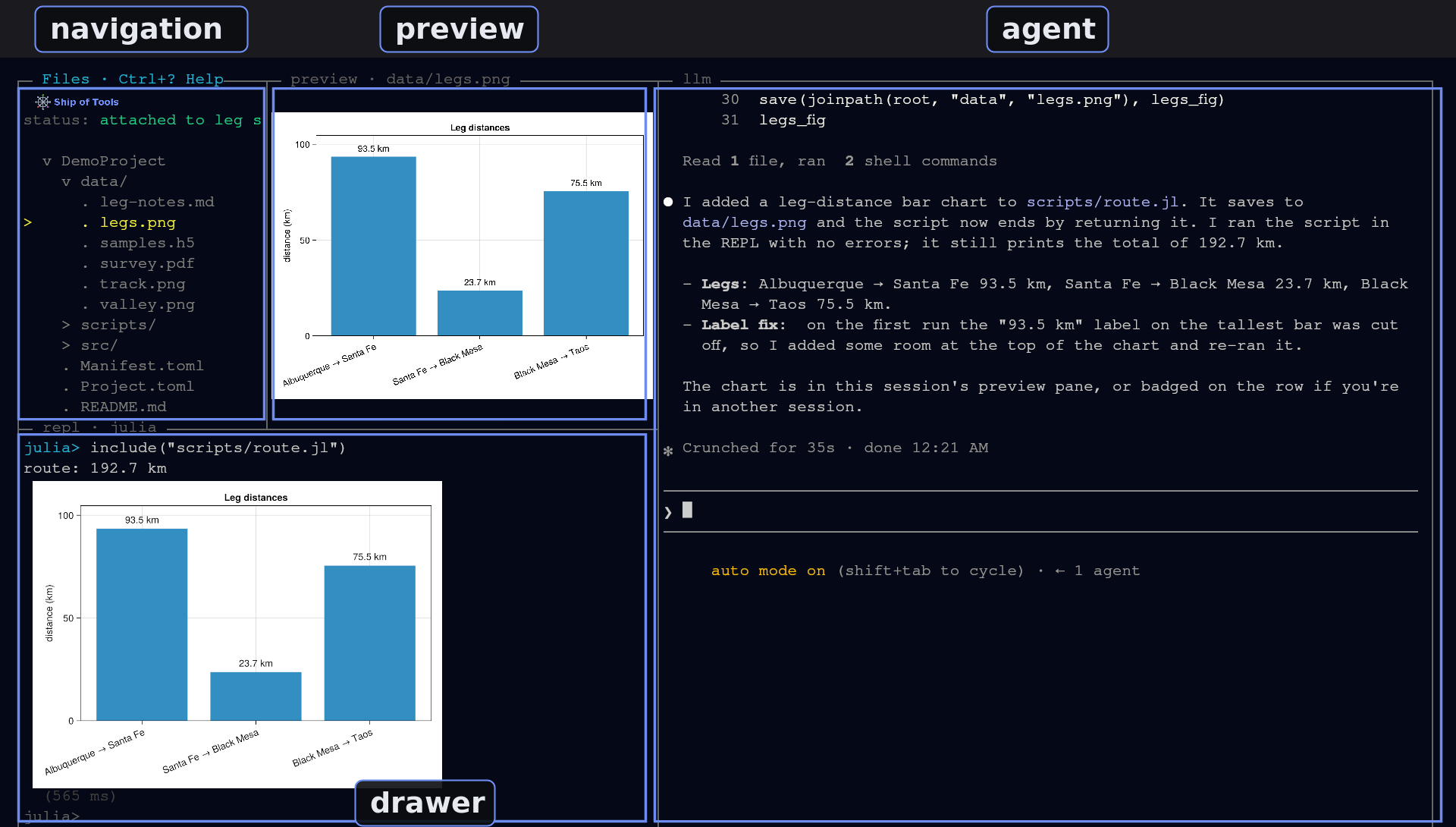
The left column is the navigation tree, a collapsible outline whose root you switch with one key. The middle column is the preview of whatever you have selected. The right column is the agent pane; its title bar reads llm. The focused pane's title bar instead shows the pane's name and its main keys, so with focus the agent pane's title reads Agent followed by its keys. The drawer shows the Julia REPL, a terminal, the host monitor or Help. Below the drawer, the row of names along the bottom edge is the session strip, one entry per session; the window's own bottom border reads fe <version> · be <version>, highlighted when they differ. See The interface.
Three plain lines sit around the navigation tree: status: above it shows the connection, the active workspace and a revision count; annotation: below it says whether the entry under the cursor has a concept annotation; key: at the bottom is the last key the window received.
On first launch the window opens in Files mode and the agent pane is empty: nothing runs there until you create a session.
The agent
Create a session. Press
sfor Sessions mode and pick[+ create new]; the keys are in Start an agent session.Type a request. Move focus to the agent pane (
Ctrl+Right, twice from the navigation pane) and type into it as you would into Claude Code or Codex in a terminal; it is the same program.It runs code in your REPL. A Claude Code session runs Julia in the session's persistent REPL, the one
Ctrl+Jopens, and each of its runs appears in that drawer. See How agents use the REPL.It shows you figures. A figure the agent produces is saved to a file, and the agent can put it in your preview pane with
show-result; figures you produce yourself at the REPL prompt appear inline in the drawer.Watch the row colour. In Sessions mode the row colour shows whether the agent is working, waiting for your answer or done; the colours are in Work-state colours.
The session keeps running when you switch rows. Closing the window ends it; see What keeps running.
Files mode — f
Press f for Files mode: filesystem navigation over the project. Move with the arrow keys — ↑ / ↓ to move through the tree, → to descend into a directory, ← to go back up. As you move, the preview pane renders the selected file: markdown rendered, images shown, .jl files syntax-highlighted, PDF pages rasterized, and a poster frame for video.
To edit a file yourself, move focus to the preview (Ctrl+Right) and press e: the file opens in the built-in editor in the preview pane. Ctrl+S saves; Escape closes it, and asks first if there are unsaved edits. When the entry has a concept annotation, e edits the annotation instead.
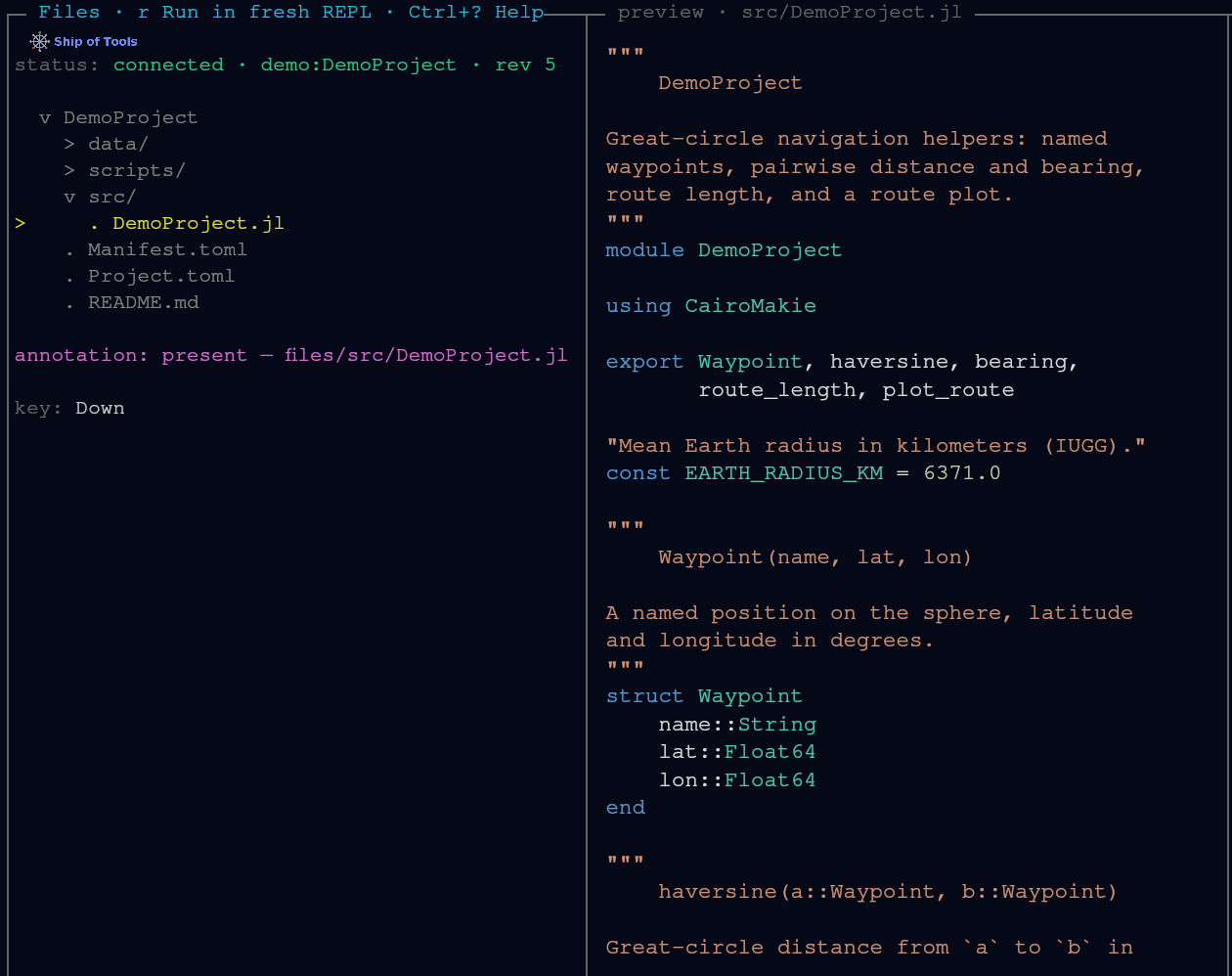
For what each file type renders and how, see Previews.
Modules mode — m
Press m for Modules mode: a structural view of the code, derived mechanically from JuliaSyntax.jl — modules and their definitions: types, functions, macros and submodules, with each type's constructors under it. It is read-only. Cursor position is preserved per mode, so switching f ↔ m returns you to where you were in each.
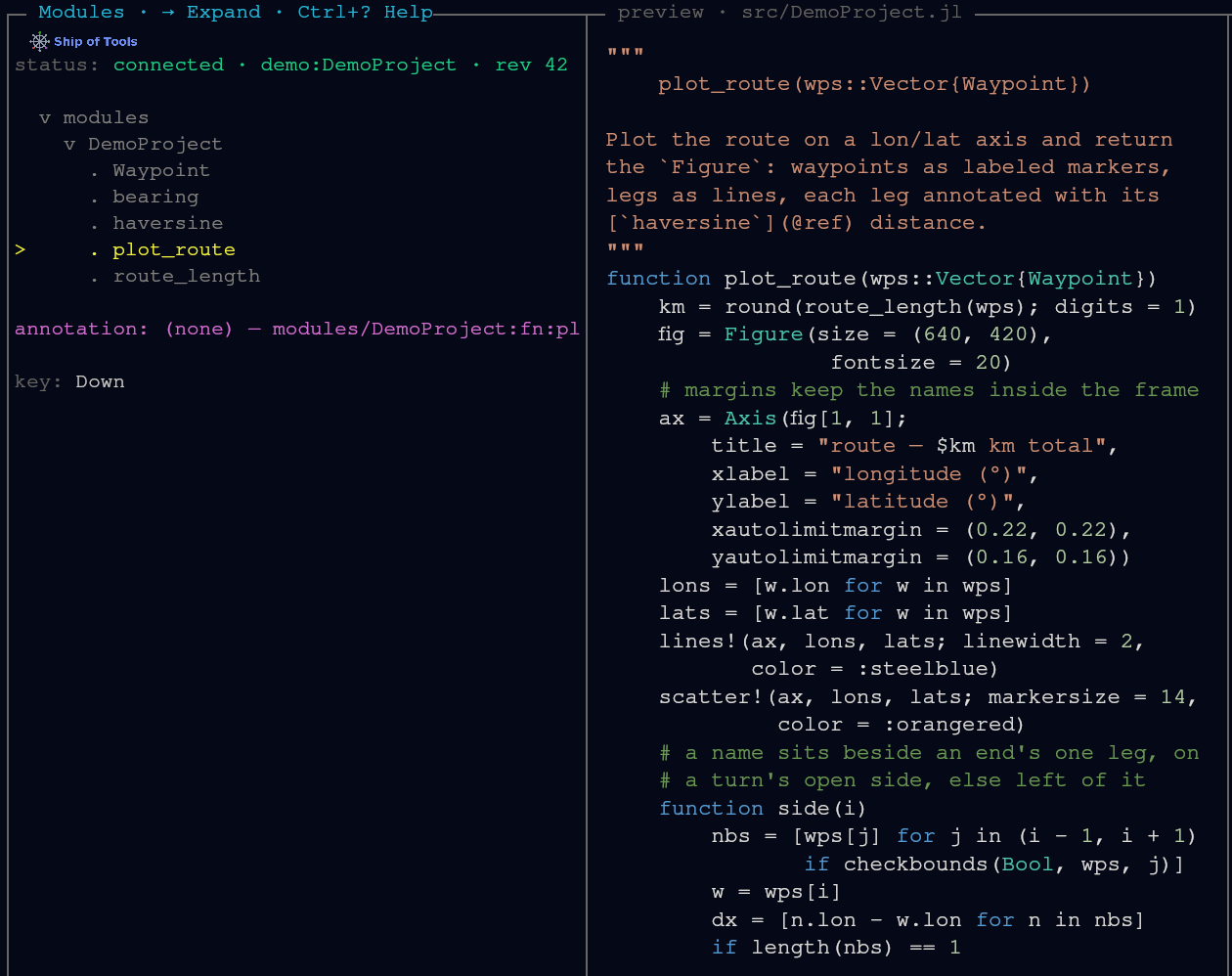
The full set of modes and their column shapes is in Modes.
The REPL drawer — Ctrl+J
Press Ctrl+J to open the REPL in the bottom drawer: a persistent Julia session that persists across drawer switches and frontend restarts. From Files mode you can run a whole .jl file in it without retyping — r runs it in a fresh REPL (this also clears what the agent built in Main), Shift+R includes it in the current one. At the prompt, type an expression and press Enter to run it (Shift+Enter inserts a newline); values, printed output, errors and images appear below it as they arrive.
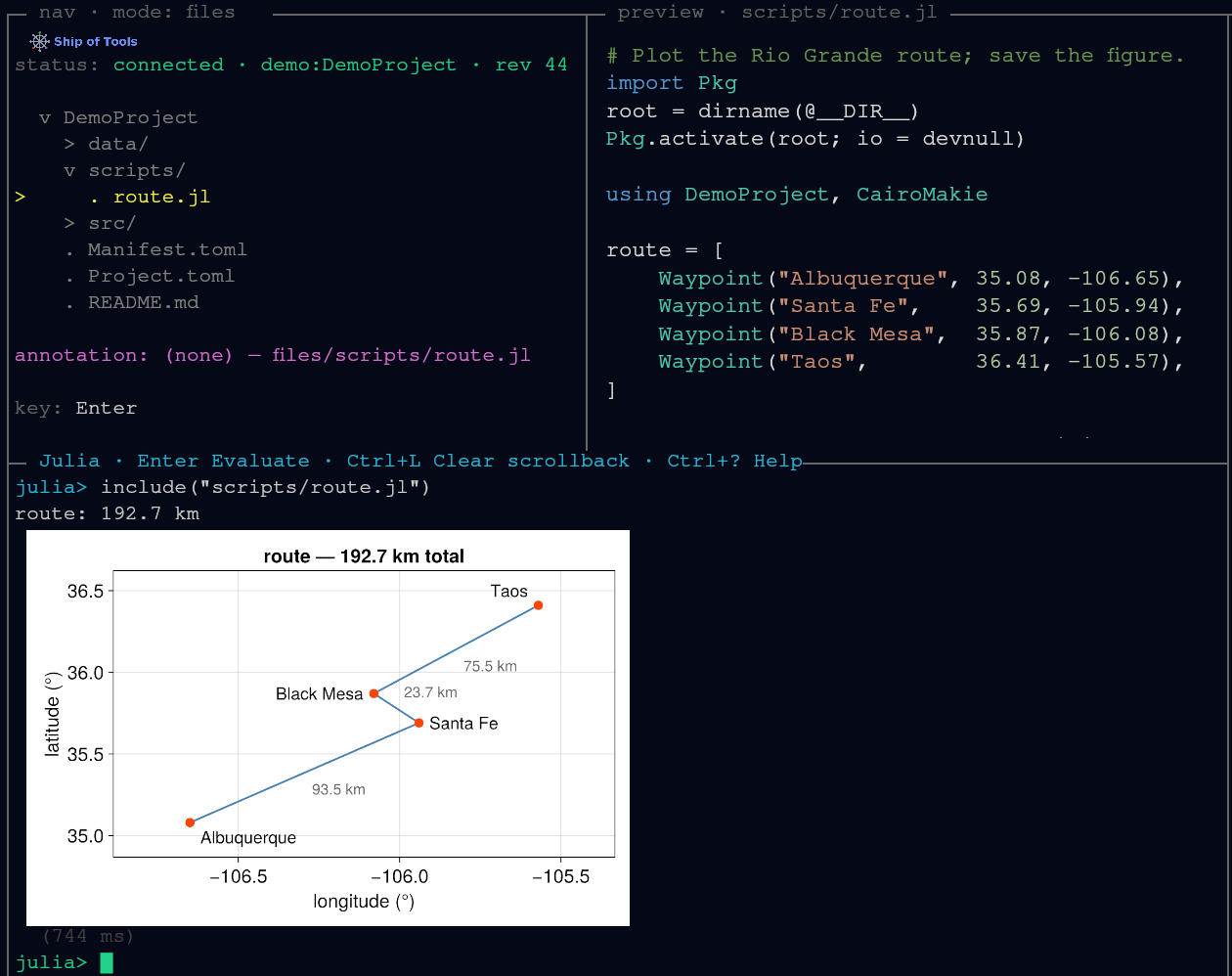
For file dispatch and the display protocol, see The REPL.
The Terminal drawer — Ctrl+T
Press Ctrl+T for a local Terminal — an OS shell on the frontend machine, typically used to SSH out to backend hosts. The REPL and Terminal share one physical drawer slot: Ctrl+J and Ctrl+T each toggle their own pane, and pressing the other key swaps the content. See The interface.
The Monitor drawer — Ctrl+M
Press Ctrl+M for the Monitor drawer: CPU, memory and GPU history for your Linux hosts, read from /proc and nvidia-smi with no extra privileges (the sampler is a Linux script; a macOS host has no /proc to read). Which hosts it shows is configured in hosts.toml; see The Monitor drawer.
Navigation modes: Sessions — s — and Hosts — h
Two more nav-tree roots switch the target, not the content:
s— Sessions. Every session on every connected host, and[+ create new]to start one (see The agent above). What a session is, and what it shares with other sessions, is in Sessions and persistence.h— Hosts. List the connected backend hosts;Enterjumps to that host's sessions. See Hosts mode.
Help — Ctrl+? and F1
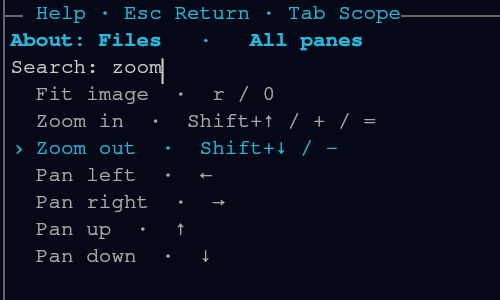
Press Ctrl+? for a five-second overlay of the focused pane's actions with their live bindings; press it again for the searchable Help drawer, or open the drawer directly with F1. Help lists the bindings in effect, including your rebinds.
Layout and focus
A few global keys manage the window itself:
| Action | Key | What it does |
|---|---|---|
| Move pane focus | Ctrl+Arrow | shift focus spatially between the panes |
| Next / previous session | Shift+Arrow | make the next or previous session in the strip the active one (left / right) |
| Maximize pane | Alt+= | fill the window with the focused pane |
| Wide-preview | Alt++ | hide the agent pane and widen the preview pane |
| Restore layout | Esc | one layer per press: un-maximize first, then exit wide-preview (only while maximized or in wide-preview) |
| Font scale | Ctrl+= / Ctrl+- | zoom the UI font up / down (Ctrl+0 resets) |
| Reconnect | F5 | reconnect the transport after a drop |
| Quit | Ctrl+Q | close the window, asking whether to keep the daemon and sessions running (every pane but the agent and the Terminal drawer) |
Plain arrows move within a pane, Ctrl+Arrow moves between panes, and Shift+Arrow switches sessions. The same chords are scoped so they do not conflict: in a text editor Shift+Arrow extends the selection, and in an image preview Shift+Up and Shift+Down zoom.
Where to go next
Architecture — the three processes and why the language split.
The REPL and Running several agents — running code and driving agent sessions.
Tutorial: an HDF5 preview and The dispatch ABI — add a preview for a new file type.