

What it does
The main features, with a short recording where one exists. Planned work is on the roadmap. Keys are given for Linux and Windows; the macOS equivalents are in Keybindings.
- Agents and sessions: sessions · hand the agent a file path · crop an image for the agent
- Navigation and previews: walk the project · Modules mode · PDF · pan and zoom · pin a file · edit a file
- The REPL: run code, see figures inline
- The window: searchable help
- Your machines: a remote backend, several frontends, sessions that outlive the connection
Agents and sessions
Claude Code and Codex sessions
Each agent session is one row in Sessions mode, on this machine or on any connected host. The row colour is the agent's work state, so you can see which session needs you without opening each one; the colours are listed in Work-state colours. Codex sessions have no REPL integration yet: only Claude Code sessions run Julia in the shared REPL.
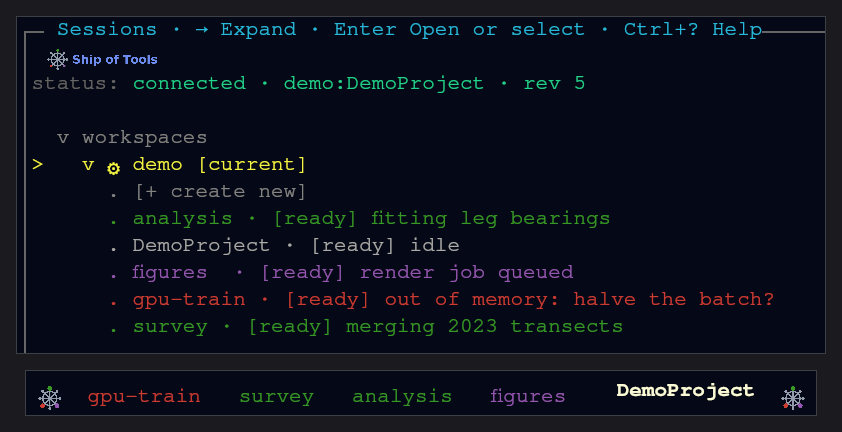
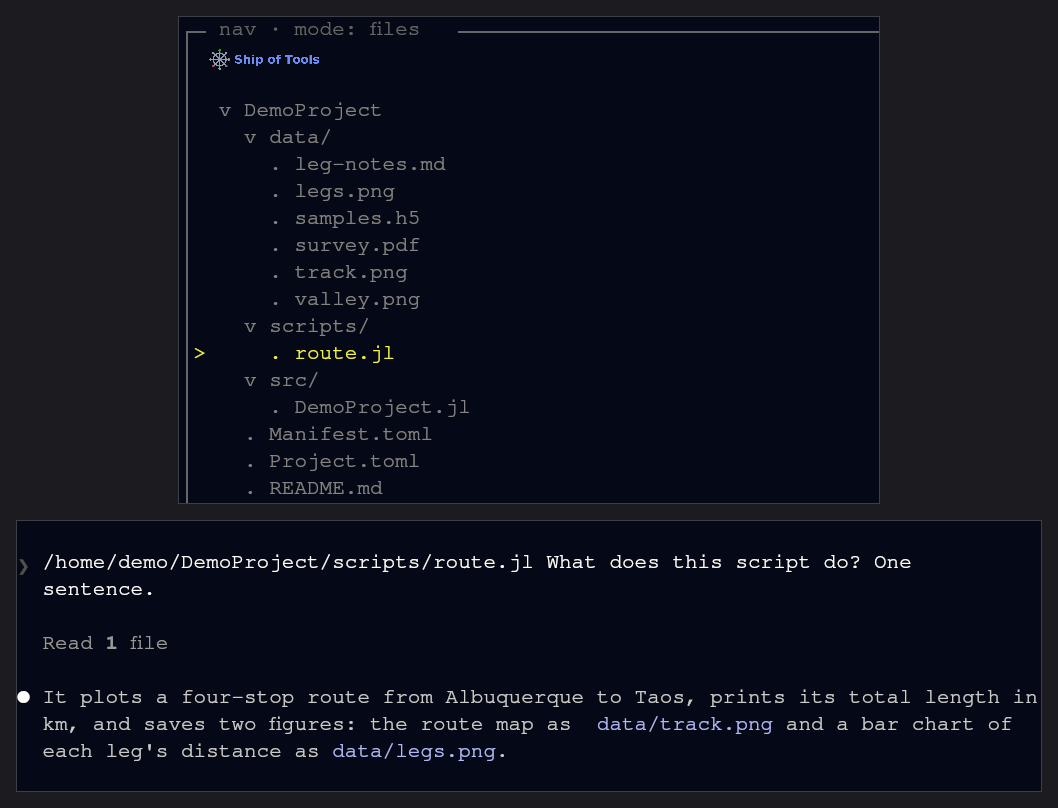
Hand the agent a file path
In Files mode, c copies the selected file's path to the clipboard for pasting into the agent's prompt.
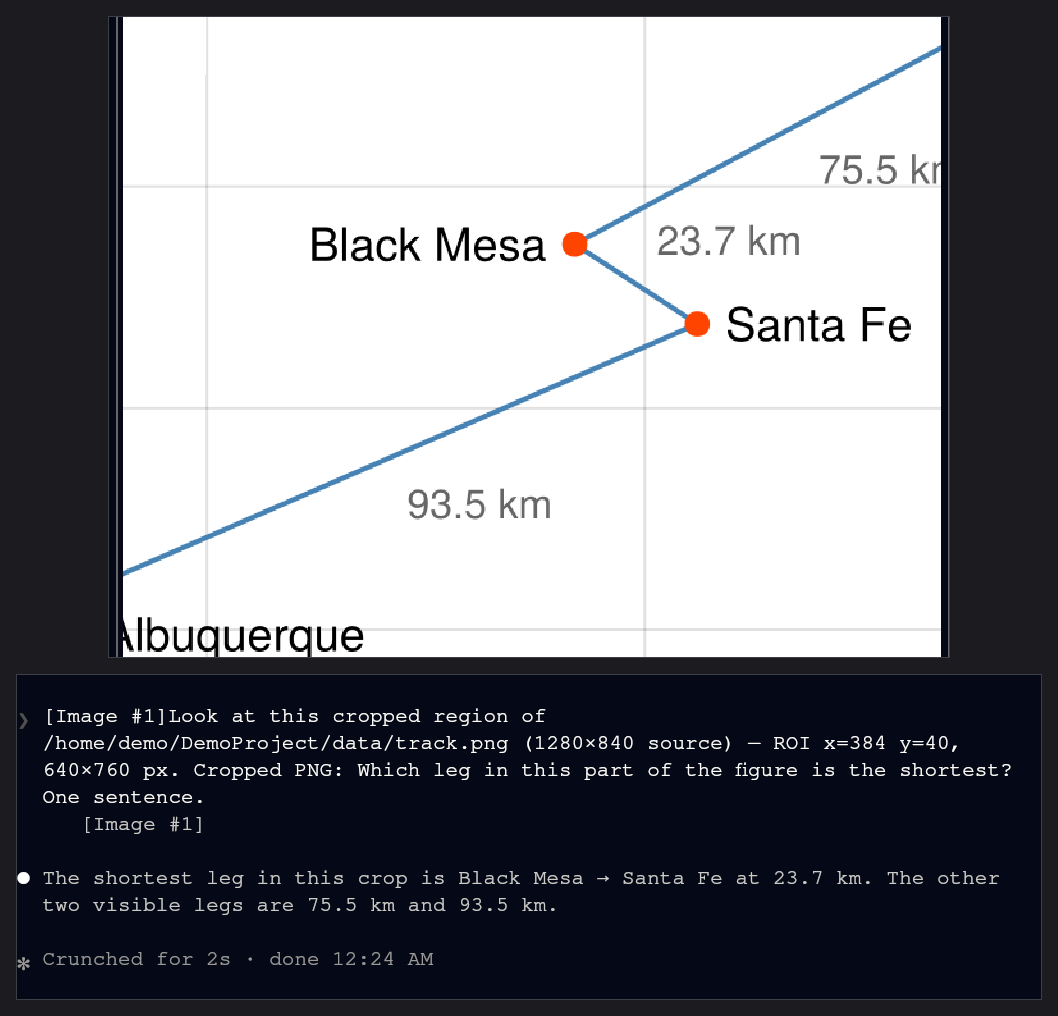
Crop an image for the agent
With the preview focused (Ctrl+Right), zoom into an image, then c crops the visible region and drops a ready-to-send line into the agent pane, naming the source file and the region, with the crop attached.
More on agents
Agents run code in your REPL. Claude Code sessions run Julia in the session's persistent REPL, and each run appears in your REPL drawer. See How agents use the REPL.
Agents can show you results. A session can open an image or file in your preview pane instead of describing it in text.
Agents messaging each other. A built-in message relay (the comm relay) carries directed or broadcast messages between sessions, across machines; the same channel drives the row colours above. See Agents messaging each other.
Navigation and previews
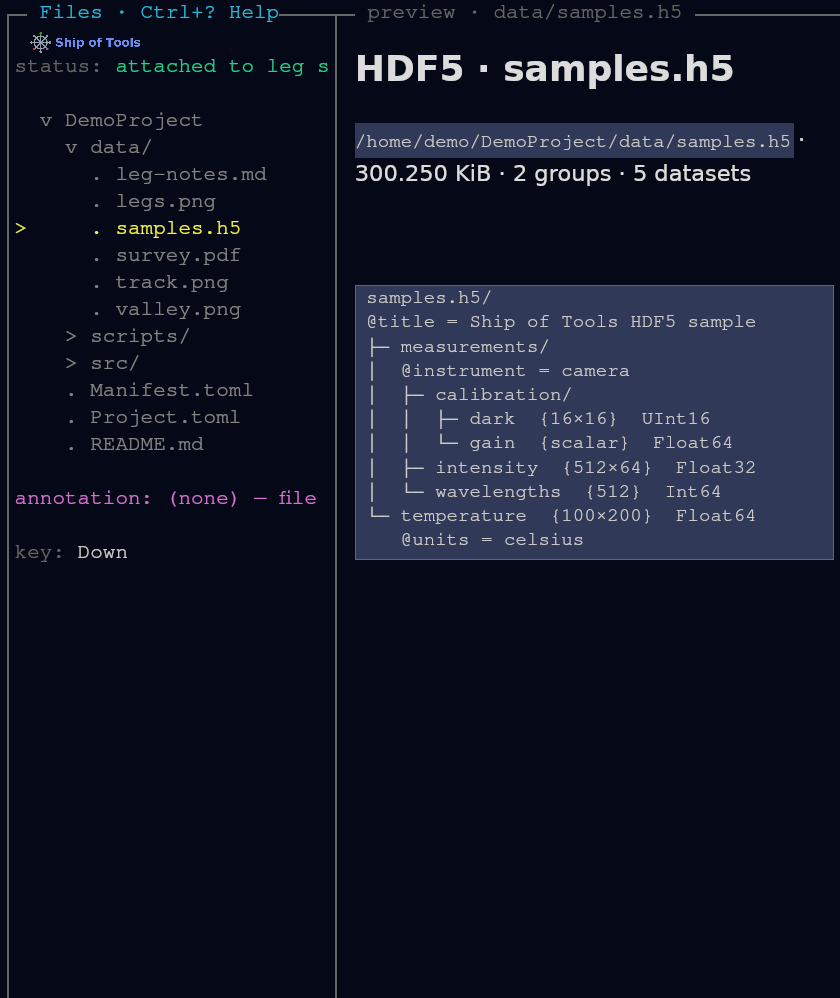
Walk the project, see the file
In Files mode the cursor walks the tree and the preview pane follows it: markdown with typeset math, an HDF5 tree, a paged PDF, a figure.
Modules mode
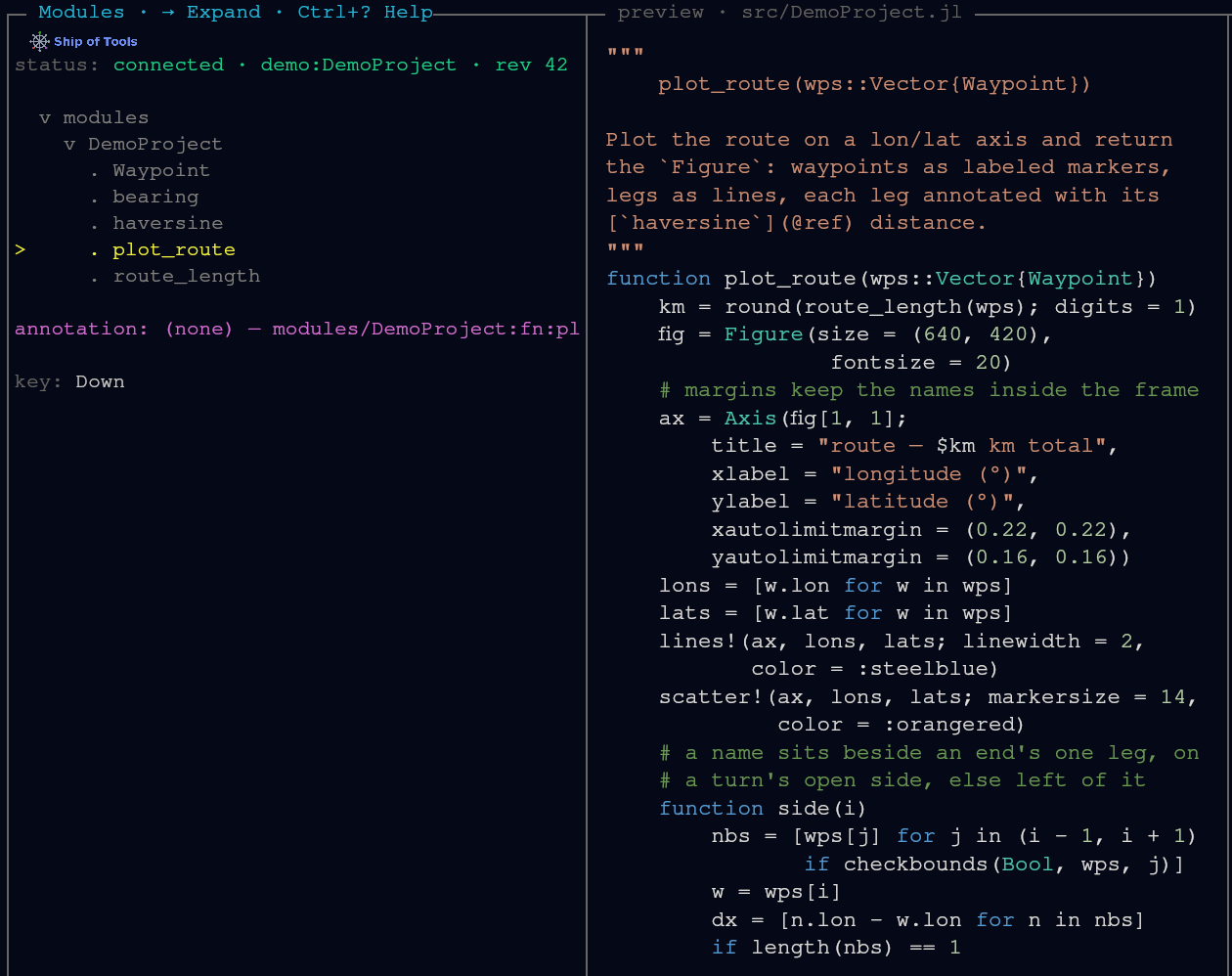
m switches the navigation tree to Modules mode — modules and their definitions — and the preview shows each definition's docstring and source as the cursor moves. Read-only, derived from JuliaSyntax.jl. See Modes.
PDF, paged
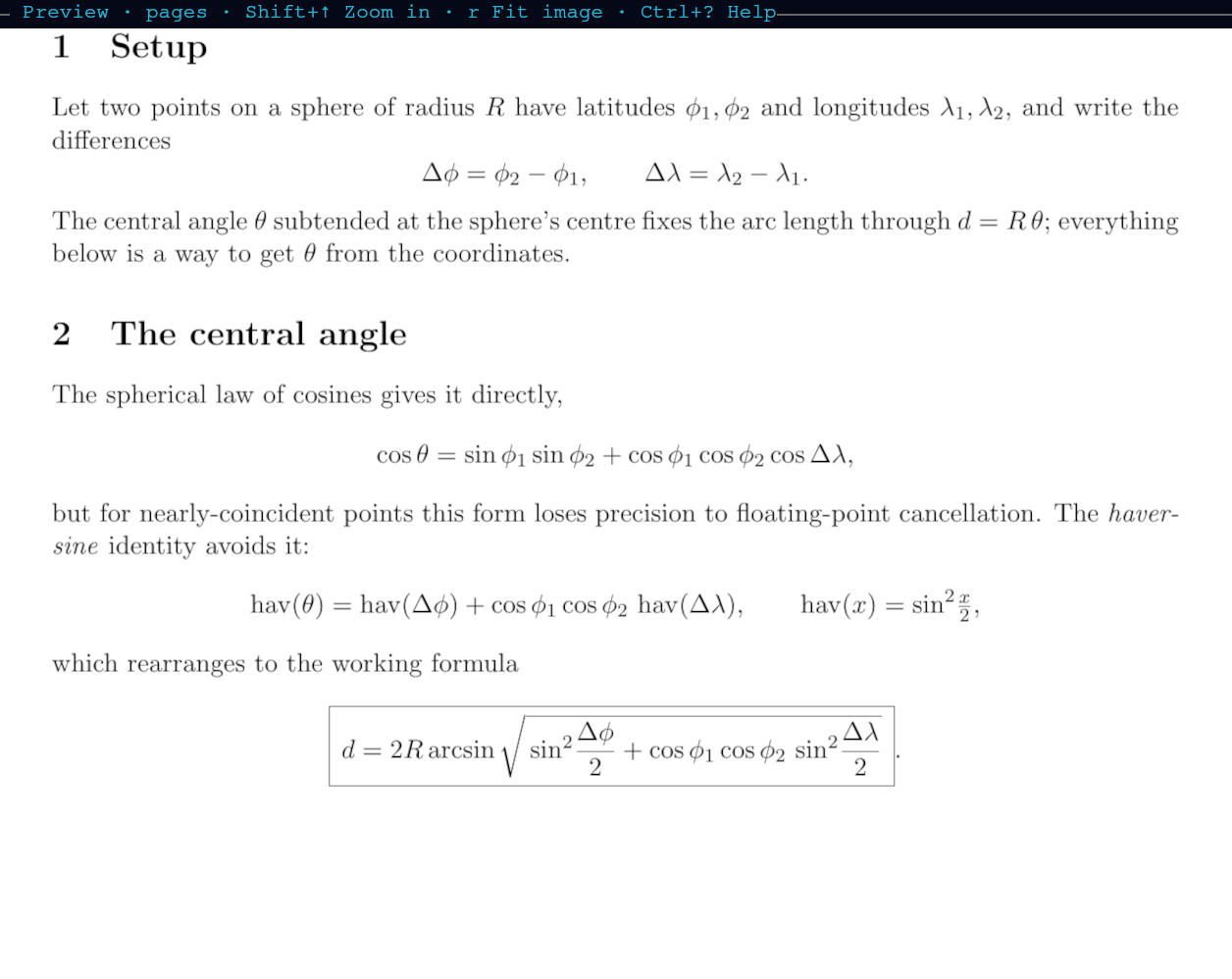
With the preview focused (Ctrl+Right), n pages a PDF forward and p back; each page rasterizes on the backend to fit the pane.
Pan and zoom images
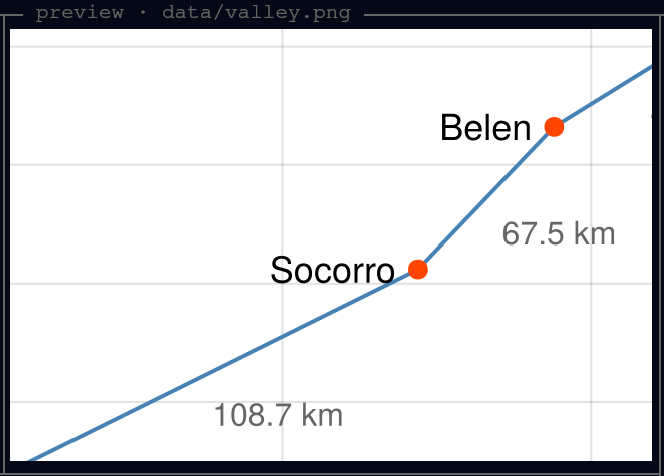
With the preview focused (Ctrl+Right), = (or Shift+Up) zooms an image in and the arrow keys pan it. Same-size images in a directory share zoom and pan, so stepping through a run's plots keeps your framing.
Pin a file
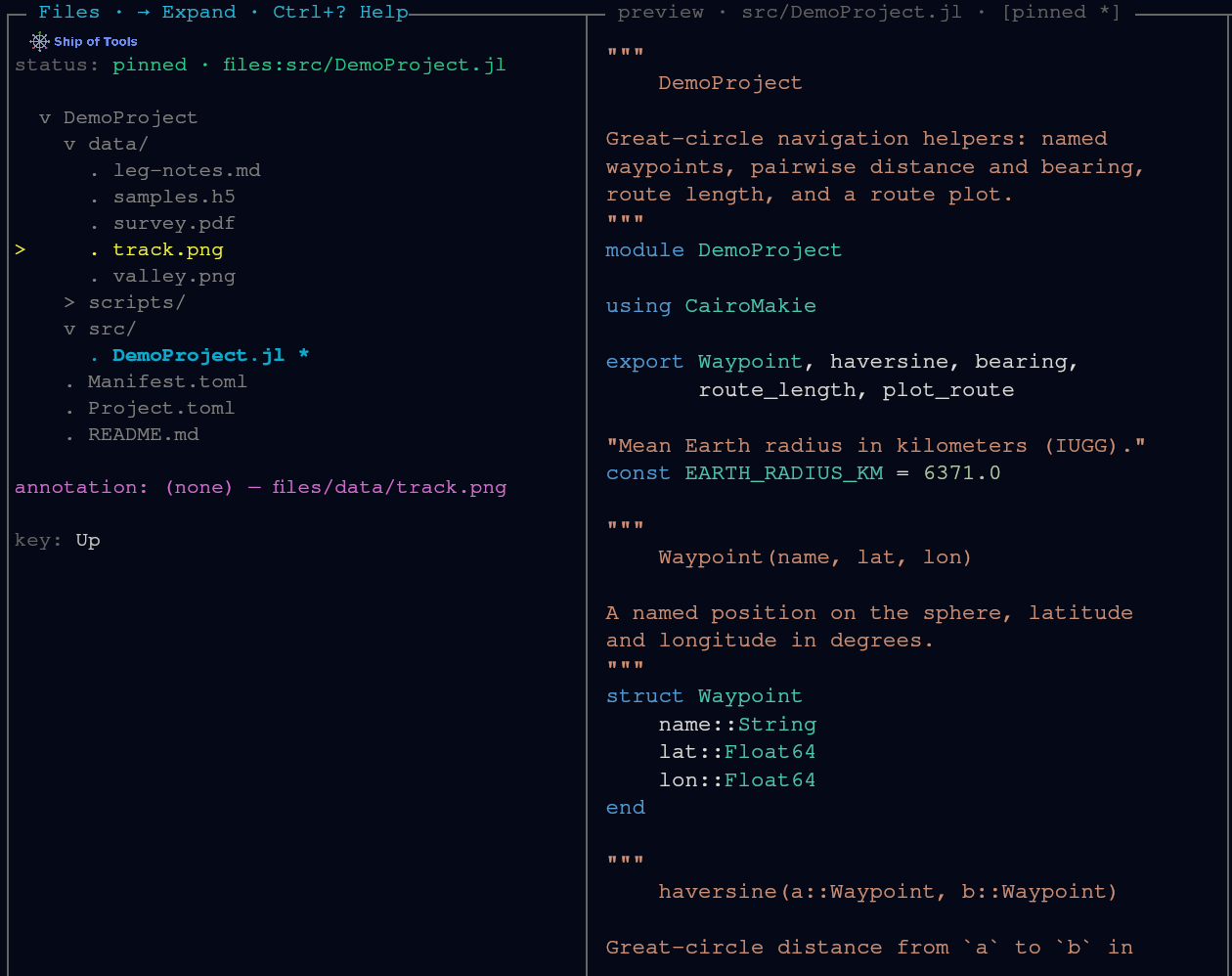
In Files mode, p pins a file to keep it in the preview pane while you browse elsewhere; it still updates as it changes on disk.
Edit a file yourself
With the preview focused (Ctrl+Right), e opens the displayed file in the built-in editor in the preview pane; Ctrl+S saves and Escape closes it, asking first if there are unsaved edits. When the entry has a concept annotation (a note about it, written by you or the agent and kept under .concept/), e edits the annotation instead; see The concept layer.
There is no diff view of its own: you review the agent's edits in the preview pane, which follows a file as it changes on disk, in the REPL drawer, which shows every run the agent made, and with git in a shell session.
More on previews
Add a file type in Julia. A
FileTypesubtype, amatchesmethod and apreviewmethod; no Rust changes. See The dispatch ABI.Video and interactive documents open in the browser. Video shows a poster frame in the pane;
oopens playback in your browser. Pluto notebooks, Quarto documents and HTML pages follow the same policy, served through the backend connection, local or remote, with no SSH setup.
The REPL
Run code, see figures inline
A persistent Julia REPL per session. Run a whole .jl file (r into a fresh REPL — this also clears what the agent built in Main — Shift+R into the current session) or type at the prompt. CairoMakie figures render inline in the drawer as images, not through a terminal graphics protocol. See The REPL.
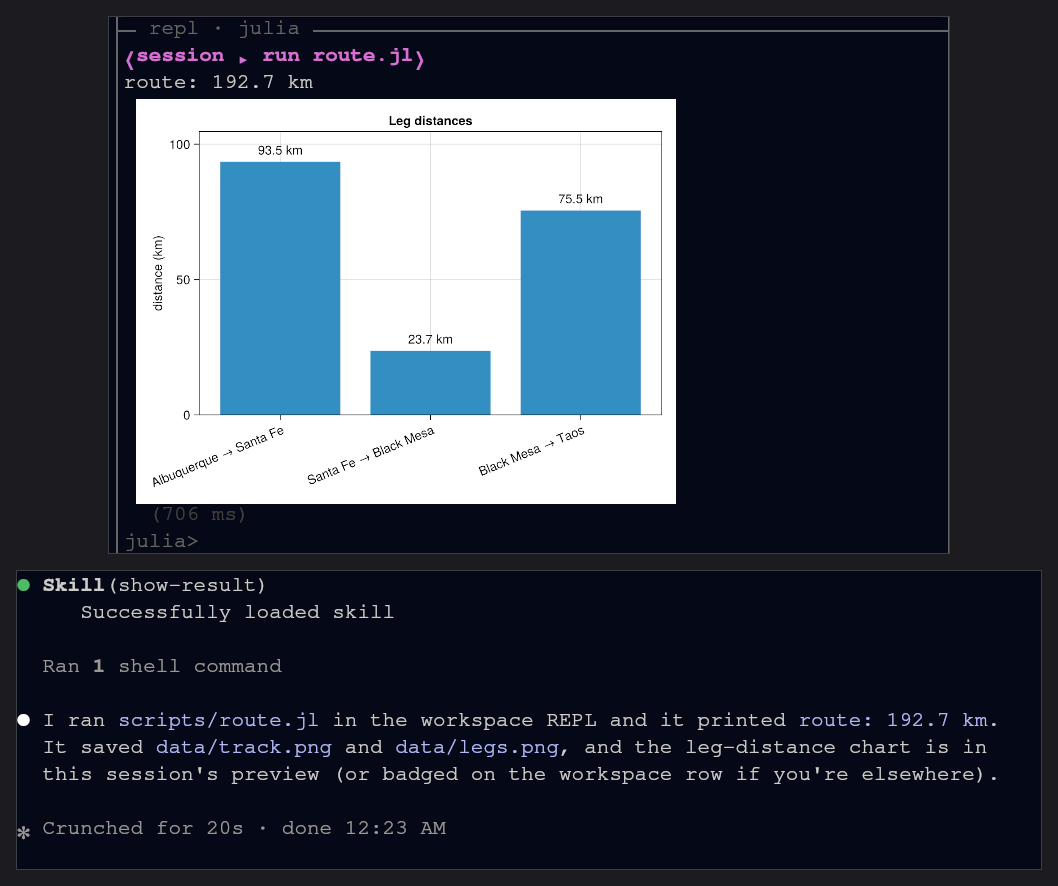
The drawer's REPL and the agent's are the same Julia process and Main, one evaluation at a time; see How agents use the REPL.
- Interactive figures open in your browser.
wglshow(fig)serves a live WGLMakie figure in your browser so you can pan, zoom and rotate in 3-D; the page and its WebSocket are served through the backend connection, local or remote, with no SSH setup.
The window
Searchable help
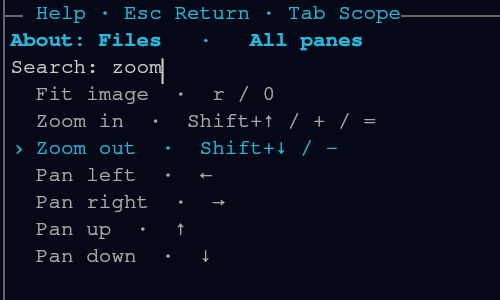
Ctrl+? overlays the focused pane's actions; press it again for the searchable Help drawer, Tab widens it to every pane, and typing narrows the list.
A local terminal.
Ctrl+Topens the Terminal drawer, an OS shell on the frontend machine, typically used to SSH out to backend hosts.Fill the window.
Alt+=maximizes the focused pane,Escaperestores.
More on the window
Watching the machines. The Monitor drawer (
Ctrl+M) shows CPU, GPU and memory across your Linux hosts, for example while a training run is going.Keybindings. Named actions can be rebound in a keybindings file; anything you do not override keeps its default. See Keybindings for the lookup order and every key.
Configuration. Layout presets for ultrawide, laptop and portrait screens, and a
[gpu]setting for hybrid-graphics laptops; see Configuration files.More keys. Uploads and downloads, an image scalebar, text scaling and a printable cheat sheet of every key are on the Keybindings page.
Your machines
The setup is in Going remote.
A remote backend. The backend daemon runs where your GPUs and data are; the window runs on your laptop or desktop and reaches it over SSH. The backend can also run locally, on Linux. Windows and macOS run as frontends to a Linux backend (macOS is experimental). See Platforms.
Several frontends. A desktop and a laptop can attach to the same backend at once and see the same sessions, work-state colours and REPLs. See A second frontend.
Sessions outlive the connection. Agent sessions run under their own supervisor, and their REPLs under the backend daemon, so a dropped connection stops nothing, and with a remote backend neither does closing the laptop lid or the window; the next launch reattaches. Closing the last window on the computer that runs the backend ends its sessions;
Ctrl+Qcan keep them. See Sessions and persistence.