

Modes
A mode is a switchable root for the navigation tree. Every mode has the same shape — a parent → current → children hierarchy shown as a collapsible outline — and a hotkey swaps which tree fills it. Cursor position is preserved per mode across switches, so jumping from Files to Modules and back lands you exactly where you left each one.
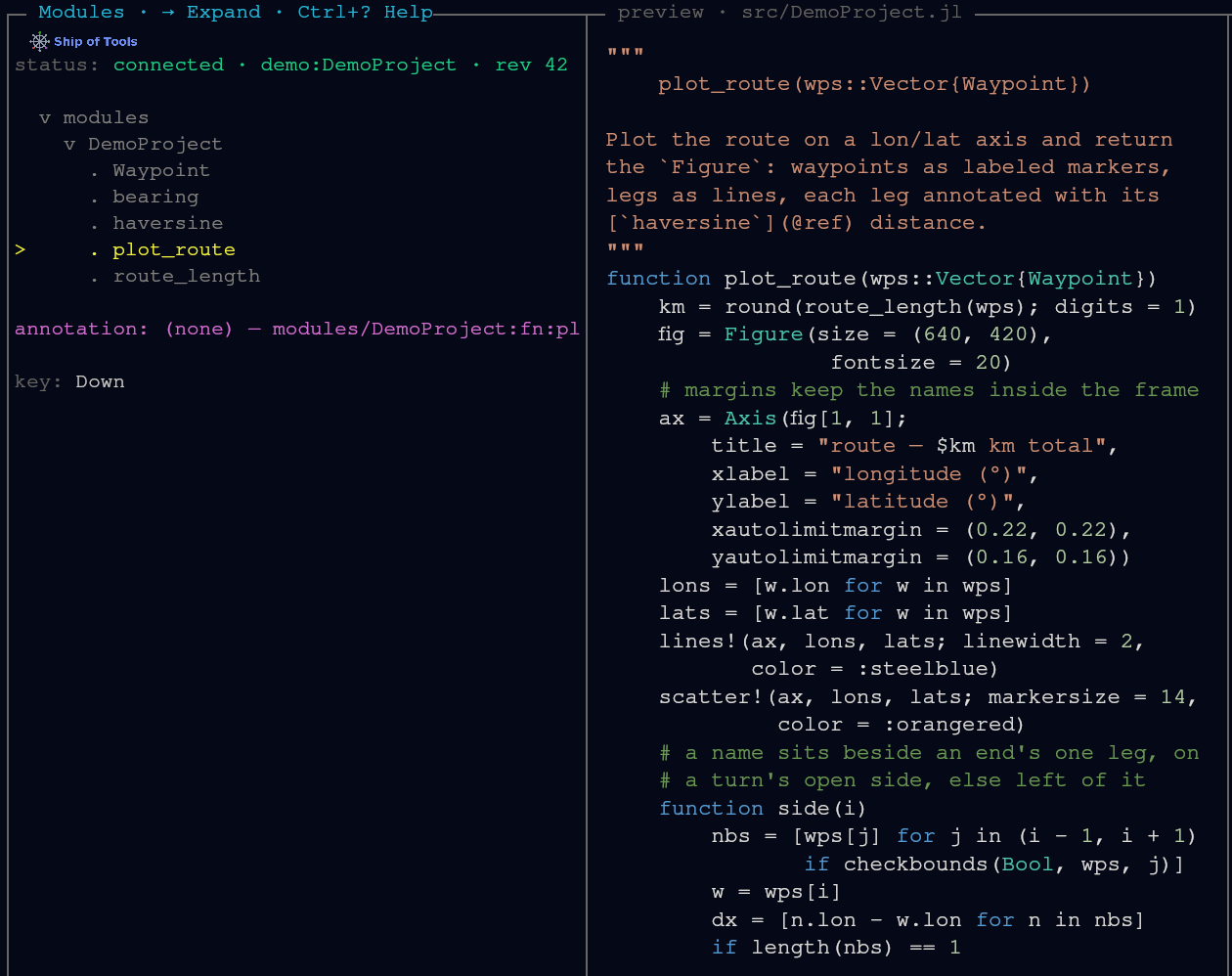
The four navigation modes are native Rust views in the frontend: Files, Modules, Sessions and Hosts. Files, Sessions and Hosts are built in Rust; the Modules tree comes from the Julia kernel. The former Mode extension type has been removed from core. ADR 0051 specifies future view extensions as Mod subtypes with tree_children and the three-argument preview, shown in a generic Mods navigation mode. The mod system is planned for a 0.7.Z after the 0.7.0 tag and is not built. The planned Agents and Outputs views become mods under that decision. See The Dispatch ABI for the current extension surface.
The same shape everywhere
The window's navigation pane is a single collapsible tree: a parent context, the current level, and its children, shown through nesting. What changes between modes is what the tree enumerates and what the preview pane shows for the cursored node.
The nav modes bound today
The frontend binds four navigation modes. Each is a single-character chord that is active only in navigation focus — in the pty panes, the editor, or a prompt, those characters stay literal text.
| Key | Mode | What it roots the tree at |
|---|---|---|
f | Files | the project filesystem |
m | Modules | modules and their definitions (types, functions, macros and submodules), read-only, from JuliaSyntax.jl |
s | Sessions | workspaces — the projects this backend is hosting |
h | Hosts | the remote hosts you can target |
Files and Modules navigate the project. Sessions and Hosts navigate the deployment surface: which project and which machine.
Sessions mode (s)
Sessions mode lists the workspaces the backend knows about and lets you commit a new one. The session picker uses three chords on the cursored directory:
| Chord | Action |
|---|---|
Enter | Create a workspace with a Claude Code agent. |
Ctrl+Enter | Create a workspace with a Codex agent. |
Shift+Enter | Create a workspace with a plain shell and no agent. |
One backend daemon hosts one Julia kernel per workspace, routed by workspace_id, so switching workspaces is fast and does not tear down the kernel — switching is "like tmux windows in the same session." You can also cycle the active workspace directly with Shift+ArrowRight / Shift+ArrowLeft.
Accounts
A session normally runs under the agent's default login. To spend a different subscription — a team account, say, kept separate from your personal one — add an account outside Ship of Tools first:
mkdir -p ~/.claude-auth/team
CLAUDE_CONFIG_DIR=~/.claude-auth/team claude
# then, inside that claude session: /login
Once that subdirectory exists it appears as a choice in the session picker (Tab cycles it) — Ship of Tools discovers accounts, it never declares or creates them, and it never stores a credential of any kind. A subdirectory you haven't logged into yet still shows up and is still selectable — the row's own pane runs the login on its first start. Sessions running under a non-default account show a short · <name> suffix in the Sessions list so you can tell at a glance which subscription each one spends.
An account folder holds only its own login and Claude's own per-account runtime state (sessions, caches, and the like). Everything else — CLAUDE.md, settings.json (hooks, permissions, model, status line), agents, commands, skills, plugins, output-styles, per-project memory (projects), and prompt history (history.jsonl) — is shared with the default folder: on the first session in a new account, the daemon links each of those entries in from ~/.claude, so the account starts with the same instructions, hooks, and history as the default login. An entry already present in the account folder — created by you, or from an earlier session — is kept as is and overrides the shared one; to use the shared one instead, remove the account's own copy. The Ship of Tools skills and work-state hooks are not in any of these folders: a session Ship of Tools starts carries them itself (the skills from ~/.sot-comm/claude-layer, the hooks in its own launch settings), whichever account it runs as. The two mail hooks are the exception: every install and update merges them into an account's own settings.json. User-scope MCP servers live with the per-account state, so add them separately for each account you want to use them from.
On Windows, a symlink needs Developer Mode or the symlink privilege, and a standard desktop user has neither. Where the daemon cannot make a symlink, it shares each folder through a junction, which needs no privilege, and checks that it can read through it; if it cannot, it removes the junction and the session does not start, naming the reason. CLAUDE.md, settings.json and history.jsonl become copies, made once at the account's first session and its own after: later changes to the default's file do not reach the account, and the account's do not reach the default (a file the default lacks is not created). Two limits follow. A junction made by a non-administrator cannot be crossed by a process that enforces redirection trust, such as an ssh session on a host that sets it for sshd.exe or a process a system service starts; the desktop does not enforce it. And a junction works on a local NTFS or ReFS volume only. To share the three files by symlink instead, an administrator turns on Developer Mode (Settings, System, For developers; a standard user cannot), and then, with no session running in that account and after saving anything you want from its copies:
$acct = "$env:USERPROFILE\.claude-auth\team"
foreach ($n in 'CLAUDE.md', 'settings.json', 'history.jsonl') { Remove-Item -LiteralPath "$acct\$n" -ErrorAction SilentlyContinue }
The next session in that account links each file the default folder has. The folders keep the junctions already made, with the same redirection-trust limit. Without an administrator, the copies stay the account's own.
An account name is lowercase letters, digits, -, and _ only, and must start with a letter or digit — team, team-2, and a_b all work, Team and ../etc do not.
Claude only, this release — Codex accounts are deferred, so a codex row always runs the default login.
Hosts mode (h)
Hosts mode lists every daemon host the frontend is connected to. The frontend dials every daemon host declared in hosts.toml at once, so each row shows whether that host is connected or unreachable, or, when its daemon answered and refused this window, why (daemon out of date for a daemon still running an older version than the window speaks), tagged [current] for the host you are working on and [default] for the first connection. Enter on a host moves the Sessions view to that host's group; there is nothing to relaunch.
The launcher's primary host is the hub unless SOT_HOST_NAME (or SOT_HOST) names another.
Switching, focus, and layout keys
Mode switches share the keymap with pane focus and layout. The relevant chords:
| Chord | Action |
|---|---|
f / m / s / h | switch nav mode (nav focus only) |
Shift+ArrowLeft / Shift+ArrowRight | cycle the active workspace |
Ctrl+ArrowLeft/Right/Up/Down | move pane focus (4-way, spatial) |
Alt+= | maximize the focused pane; Escape restores |
Ctrl+j / Ctrl+t / Ctrl+m | toggle the REPL / Terminal / Monitor drawers |
Ctrl+? | show pane actions briefly; press again for the Help drawer |
F1 | open or close the Help drawer |
Because the mode keys are plain single characters, they are deliberately scoped to navigation focus — the keymap matches them only when a nav pane is focused, so typing f into the REPL or the editor inserts an f. The authoritative chord list lives in Keybindings.